Point of sale
Your sales team searches inventory, calculates finance and leasing options, and prepares offers during customer conversations. A standalone web application for showroom and online sales.

moveretail calculates finance and leasing offers from your vehicle inventory. Make monthly payments available in customer conversations and across your digital sales channels.
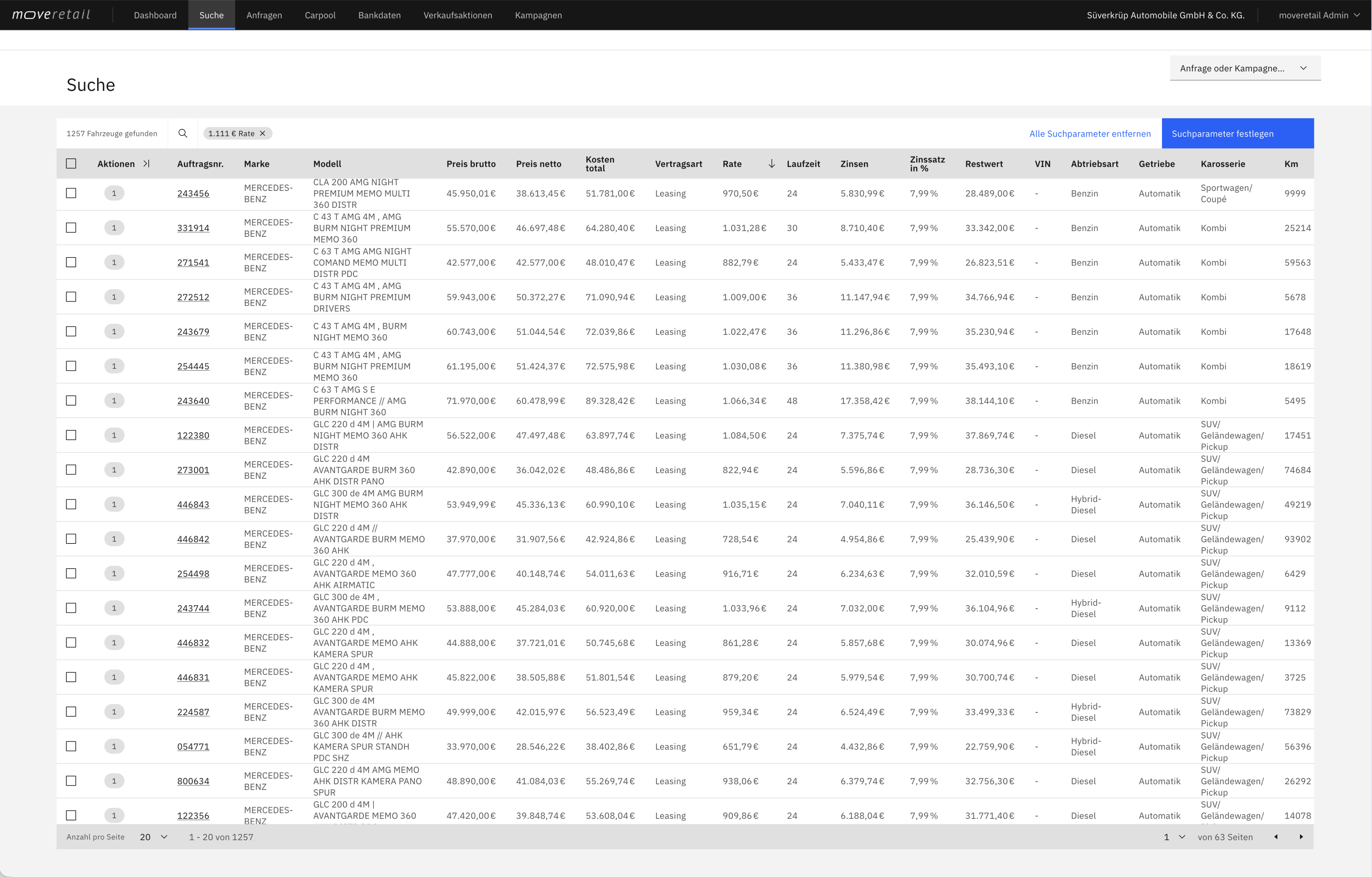
Monthly budget, model and length of use determine which vehicle fits. Search your connected inventory against these requirements instead of calculating each vehicle separately. Your customers receive a choice of vehicles with calculated monthly payments.
A shared calculation basis for showroom sales, your website, digital inquiries and customer retention.
Your sales team searches inventory, calculates finance and leasing options, and prepares offers during customer conversations. A standalone web application for showroom and online sales.
Display leasing and finance payments on your website or online shop. Prospects can also find matching vehicles by their preferred monthly payment.
A digital vehicle inquiry automatically generates an overview of finance and leasing payments. Your sales team can follow up with calculated offers.
Use lenders’ lists of expiring contracts to prepare renewal offers. Your customers’ current monthly payment is the starting point for their next vehicle: “next.best.car.offer”.
Choose a module to see how it supports your sales process.
Search your connected inventory by customer budget, model and other vehicle preferences. Compare vehicles and terms that fit the desired monthly payment and contract length.
Extensions and interfaces are enabled according to your company configuration.
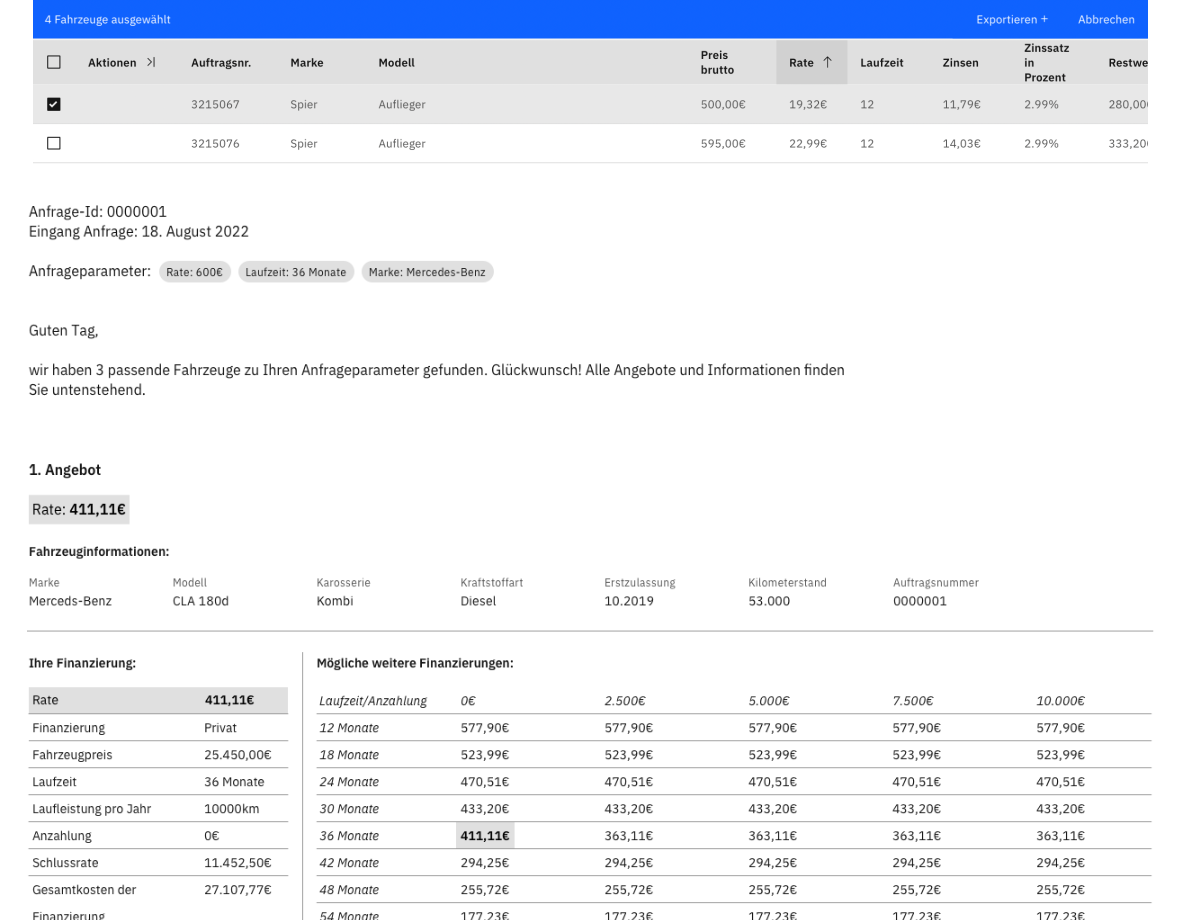
Create vehicle and offer PDFs with a matrix of different terms and down payments. Give your customers specific alternatives.

Extensions and interfaces are enabled according to your company configuration.
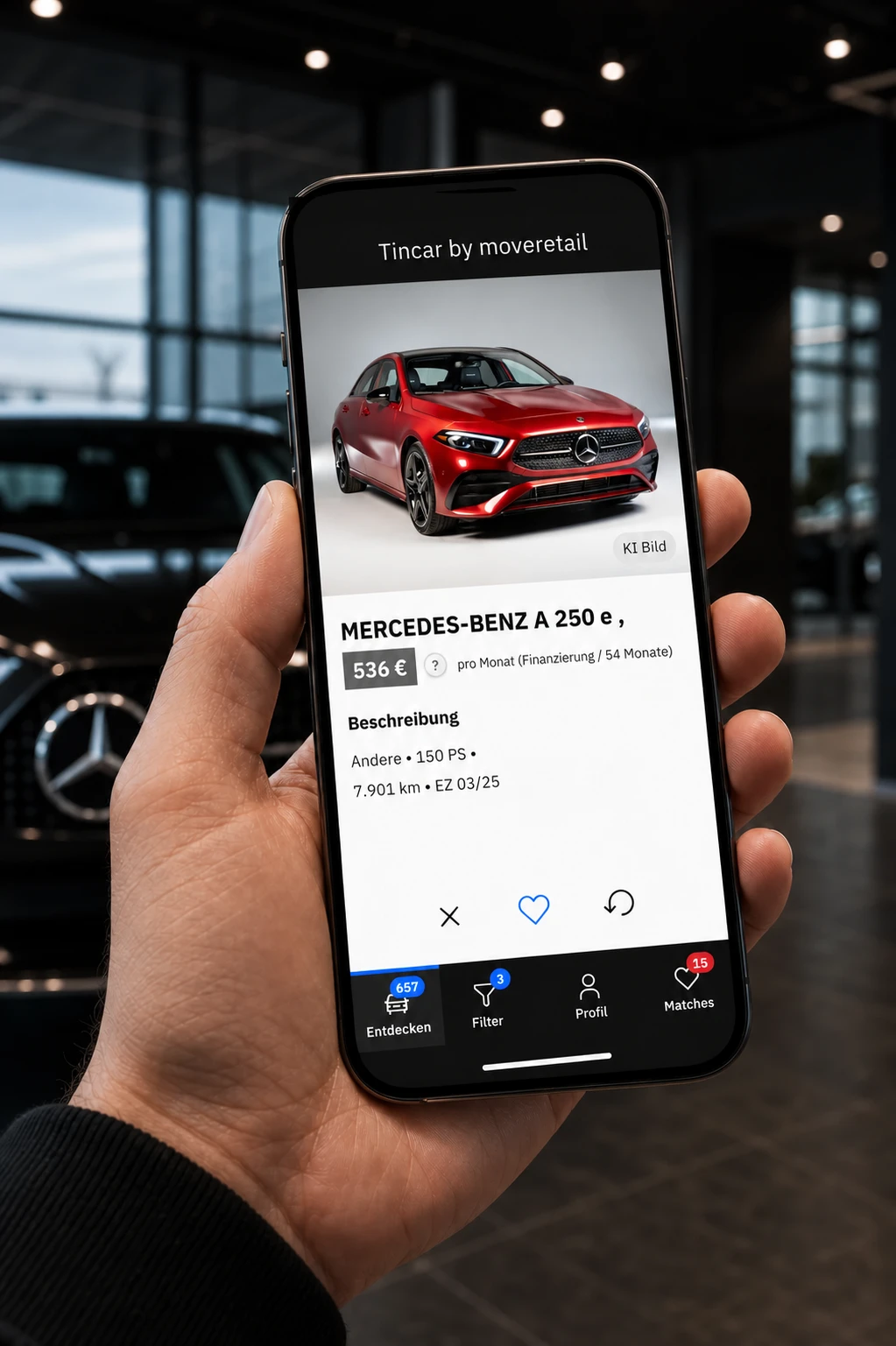
Set a budget and vehicle criteria for your campaign. Its link opens the Tincar mobile web app, where prospects swipe through suitable vehicles, save favourites as matches and send an inquiry.
Extensions and interfaces are enabled according to your company configuration.
MCP gives compatible AI assistants access to authorized vehicle data and calculated terms. The separate image extension generates AI vehicle images using the template selected for your company.

Extensions and interfaces are enabled according to your company configuration.
Image: moveretail / visualizationUse the moveretail REST API to bring vehicle data and calculated terms into your application. Add budget search and offer details to your existing workflows.

Assign inquiries across your team and track who is working on what. Status and activity provide a clear record of progress.
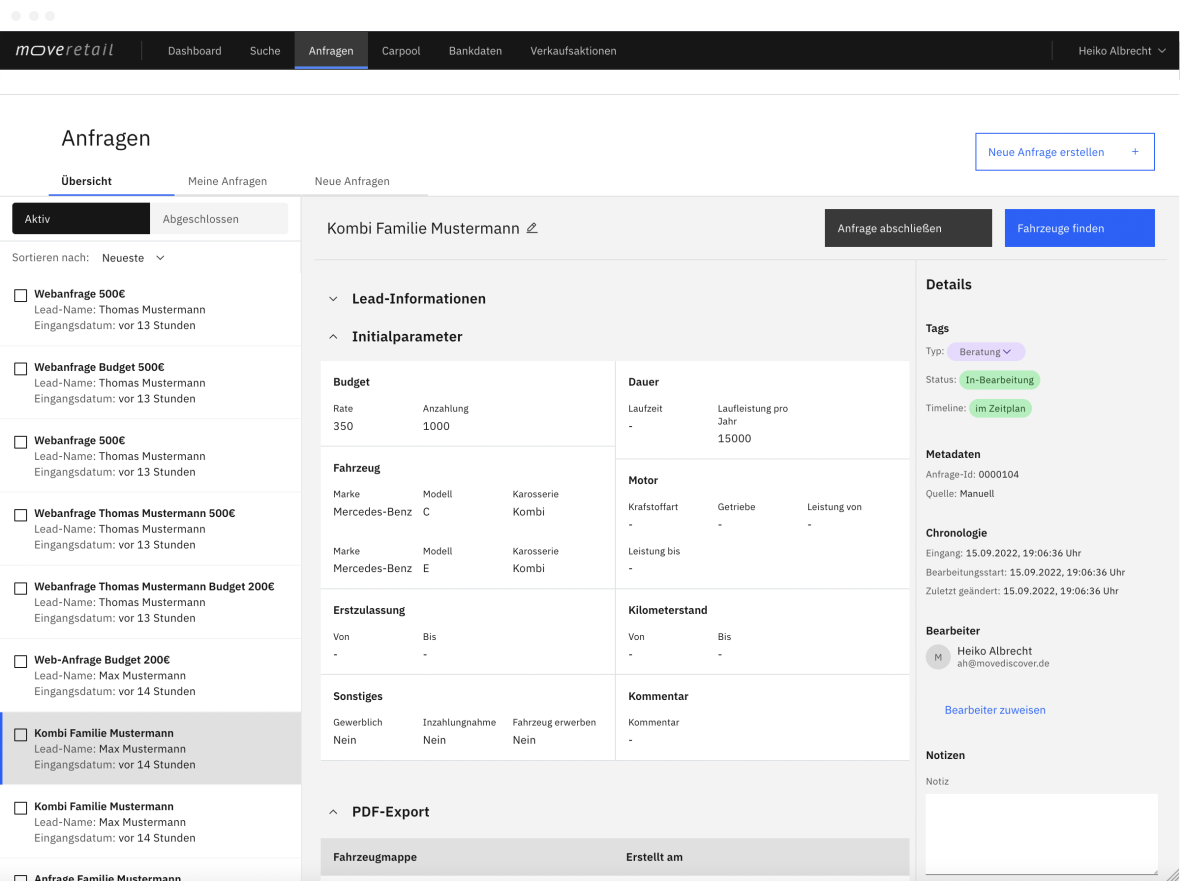
Extensions and interfaces are enabled according to your company configuration.
Link individual or manufacturer promotions to matching vehicles. These incentives are included when calculating offers.
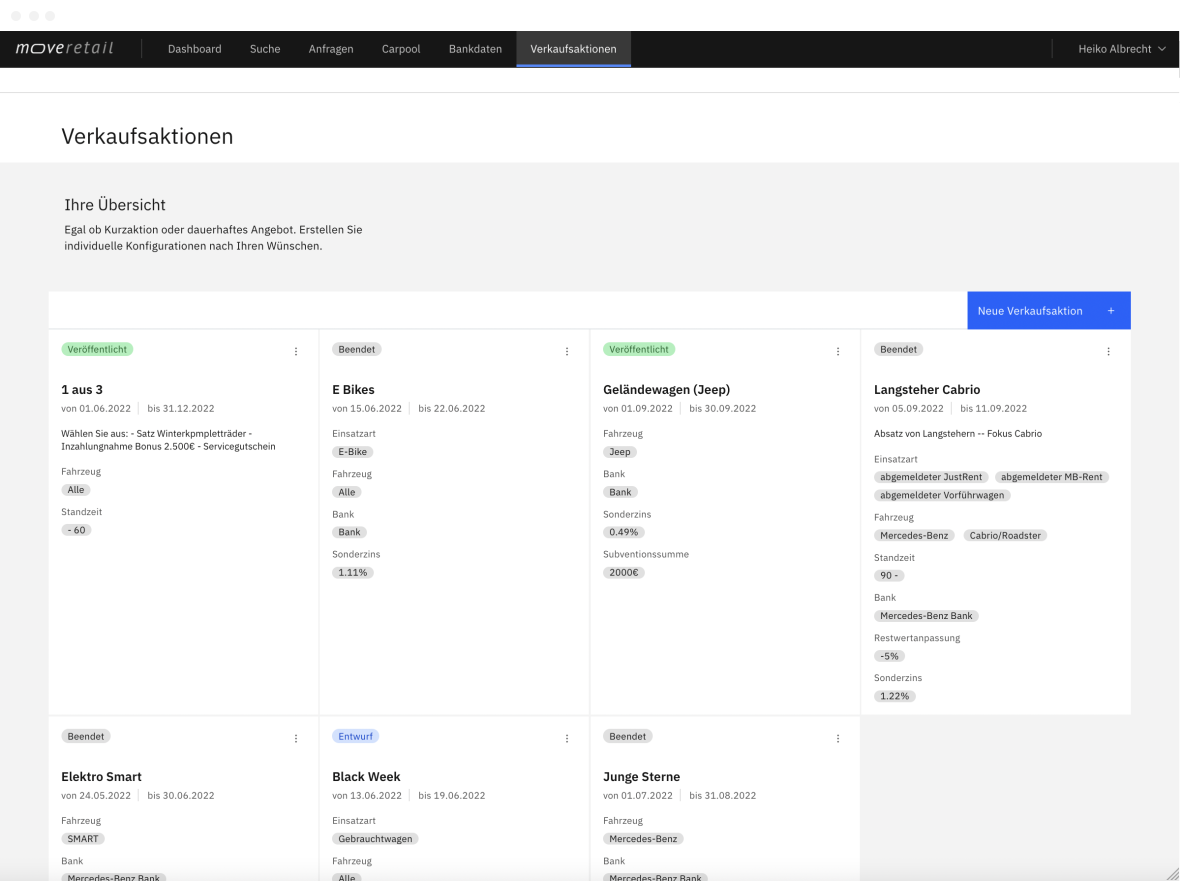
Extensions and interfaces are enabled according to your company configuration.
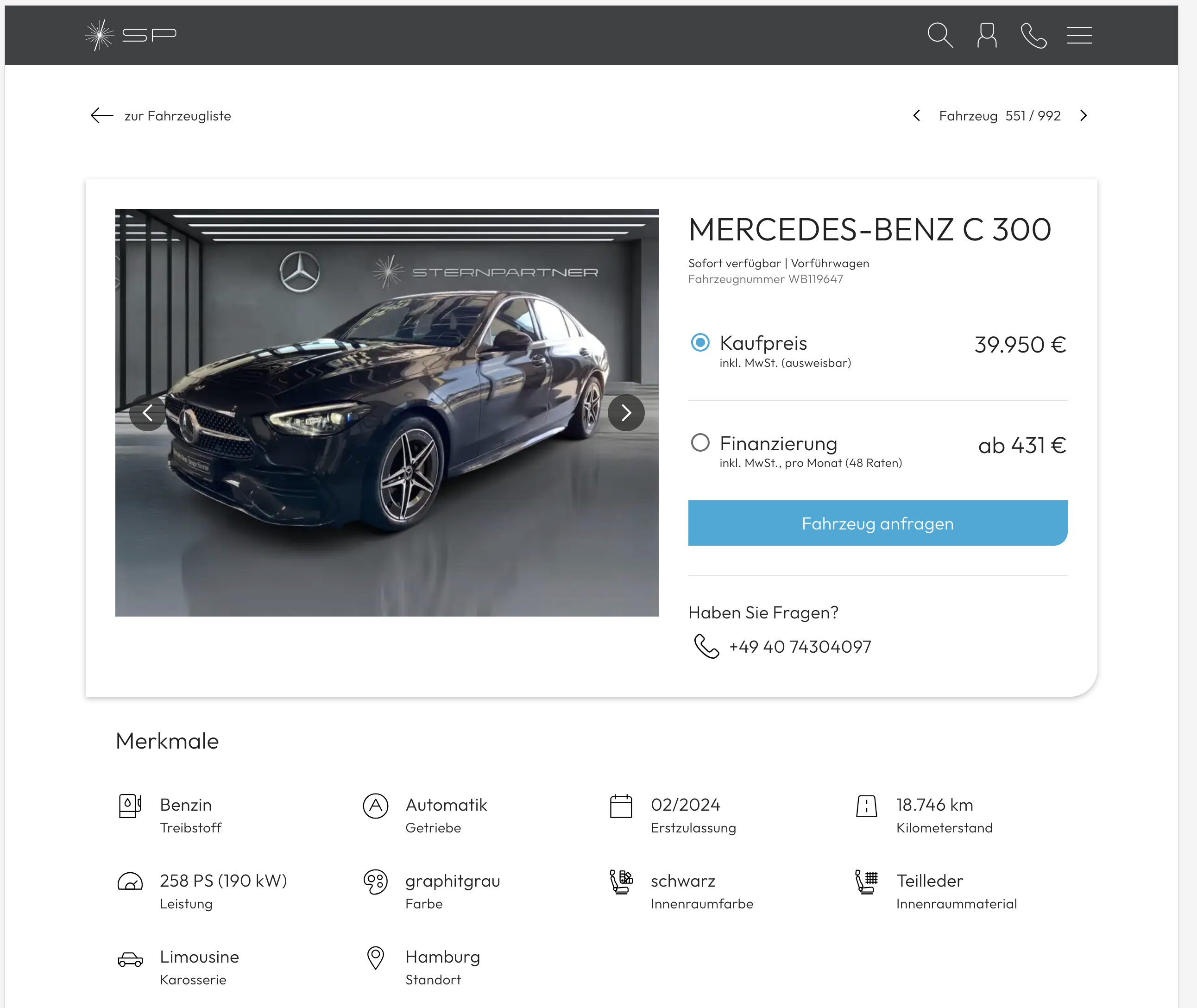
Add monthly payment search and digital inquiries to your website or online shop. Prospects find vehicles within their budget and receive calculated offers.
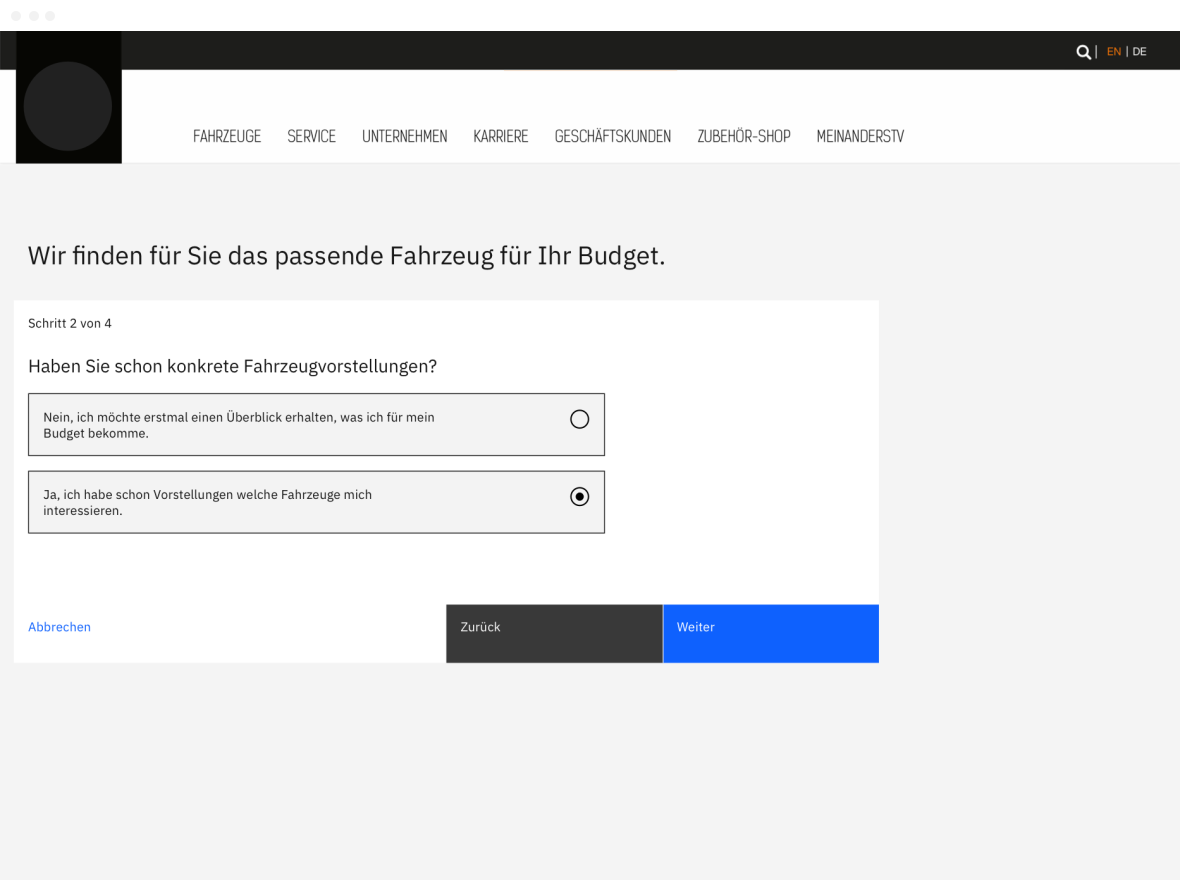
Extensions and interfaces are enabled according to your company configuration.
Keep track of new inquiries, progress and inventory synchronization, with information suited to each role.
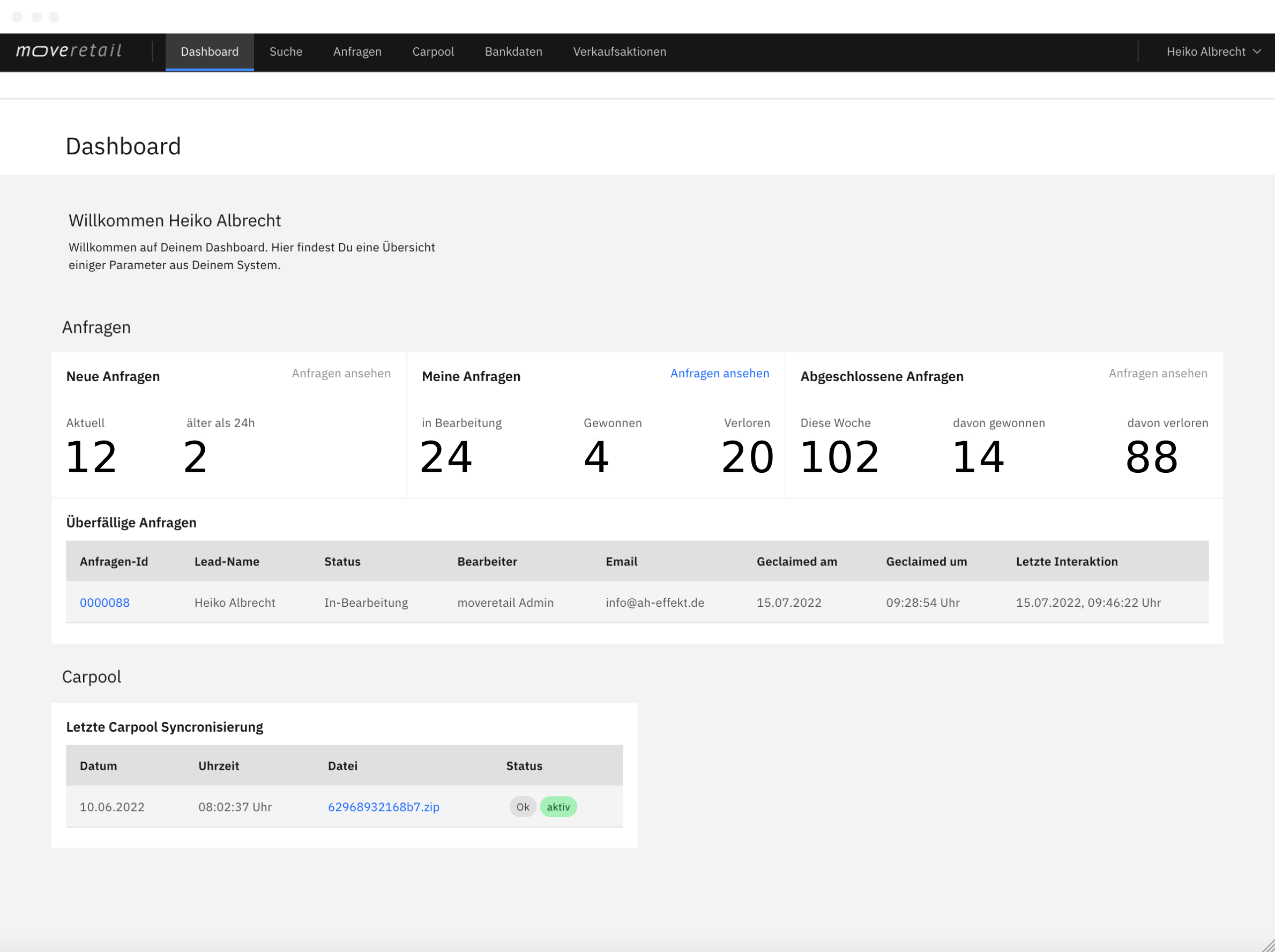
Extensions and interfaces are enabled according to your company configuration.
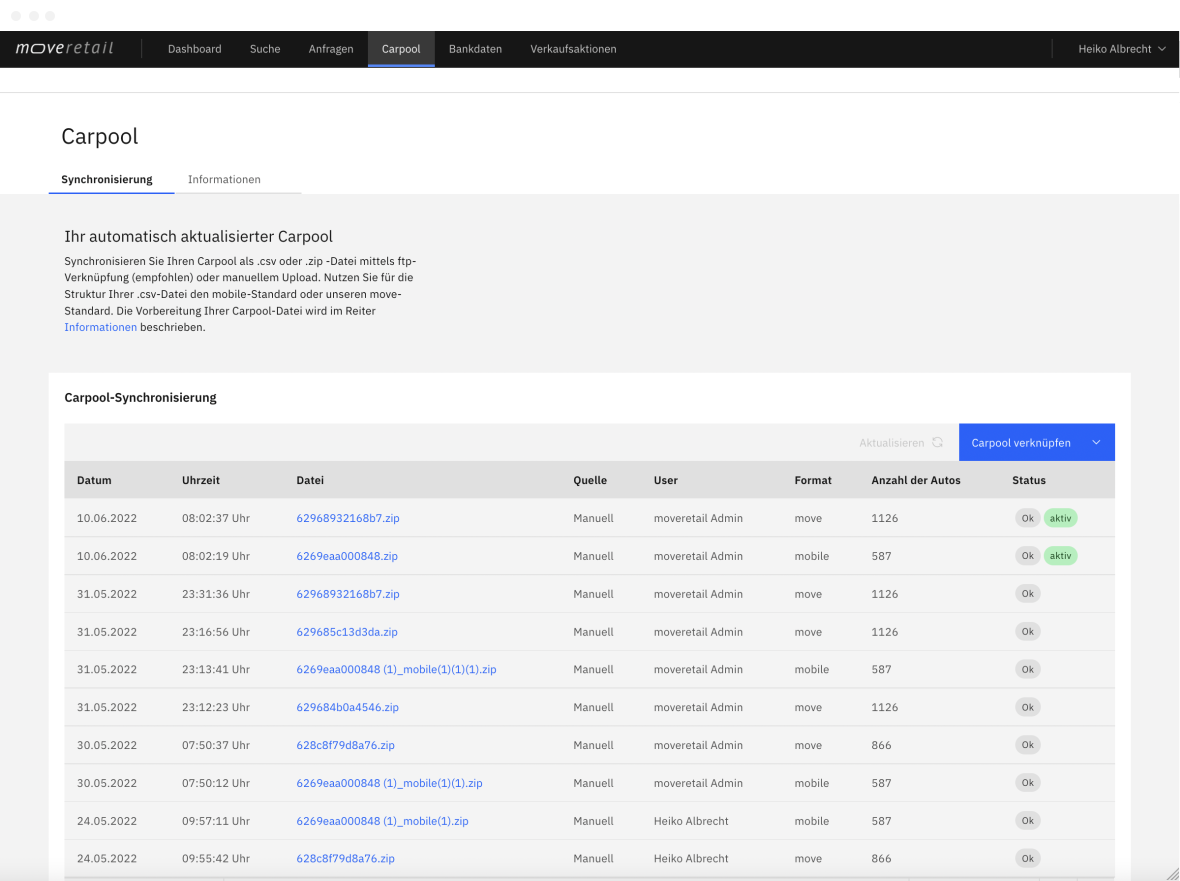
Synchronize vehicle data via FTP/SFTP or use the REST carpool import. Your team works with your connected vehicle inventory.
Extensions and interfaces are enabled according to your company configuration.
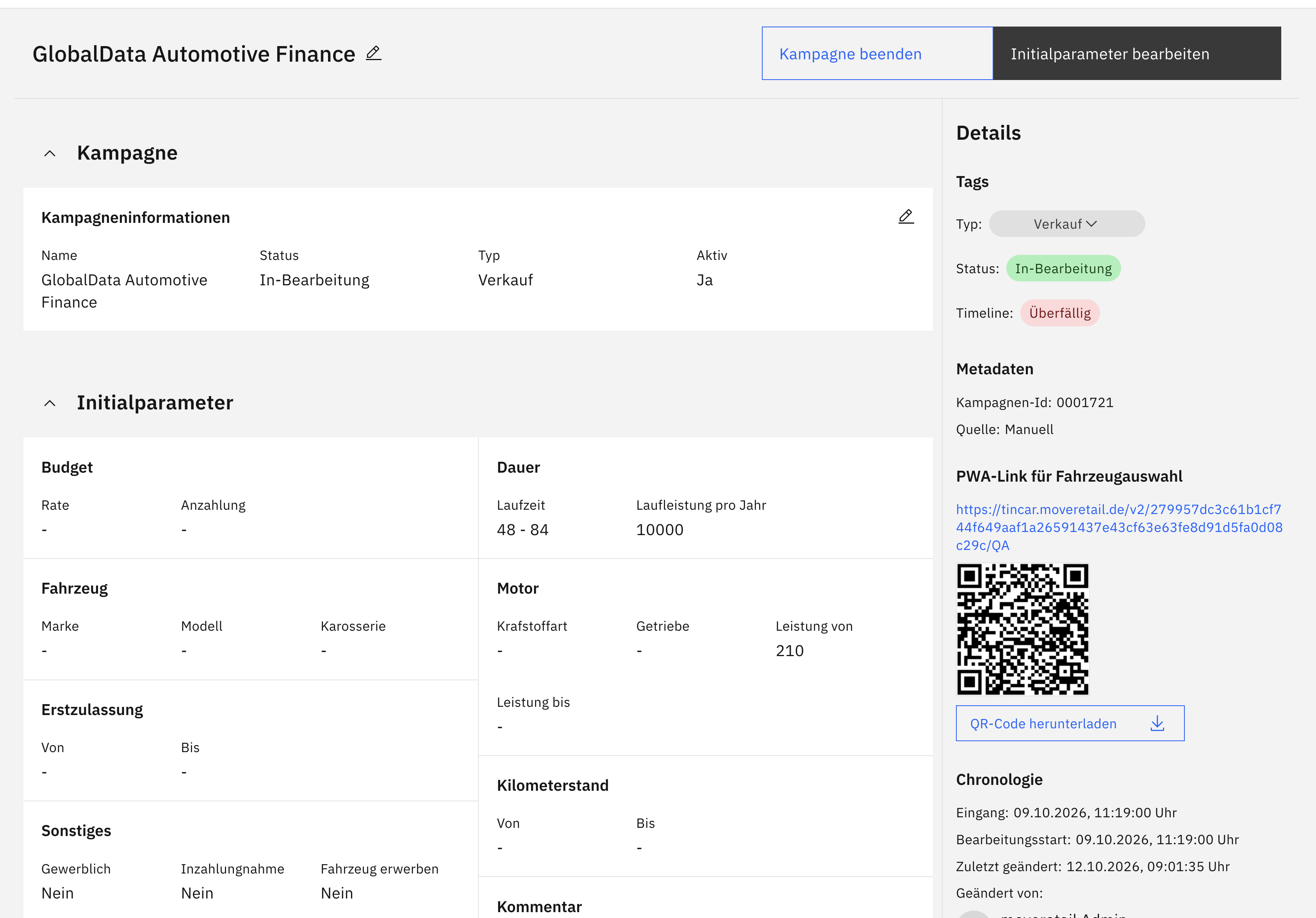
Tincar connects your advertising with vehicles that fit your prospects’ budget. Set up the campaign in moveretail and use its link or QR code online and in print.
Scroll to explore the journeySwipe or choose a step
Set the budget and vehicle criteria. moveretail creates the Tincar link and QR code for your campaign, ready to use in your advertising.
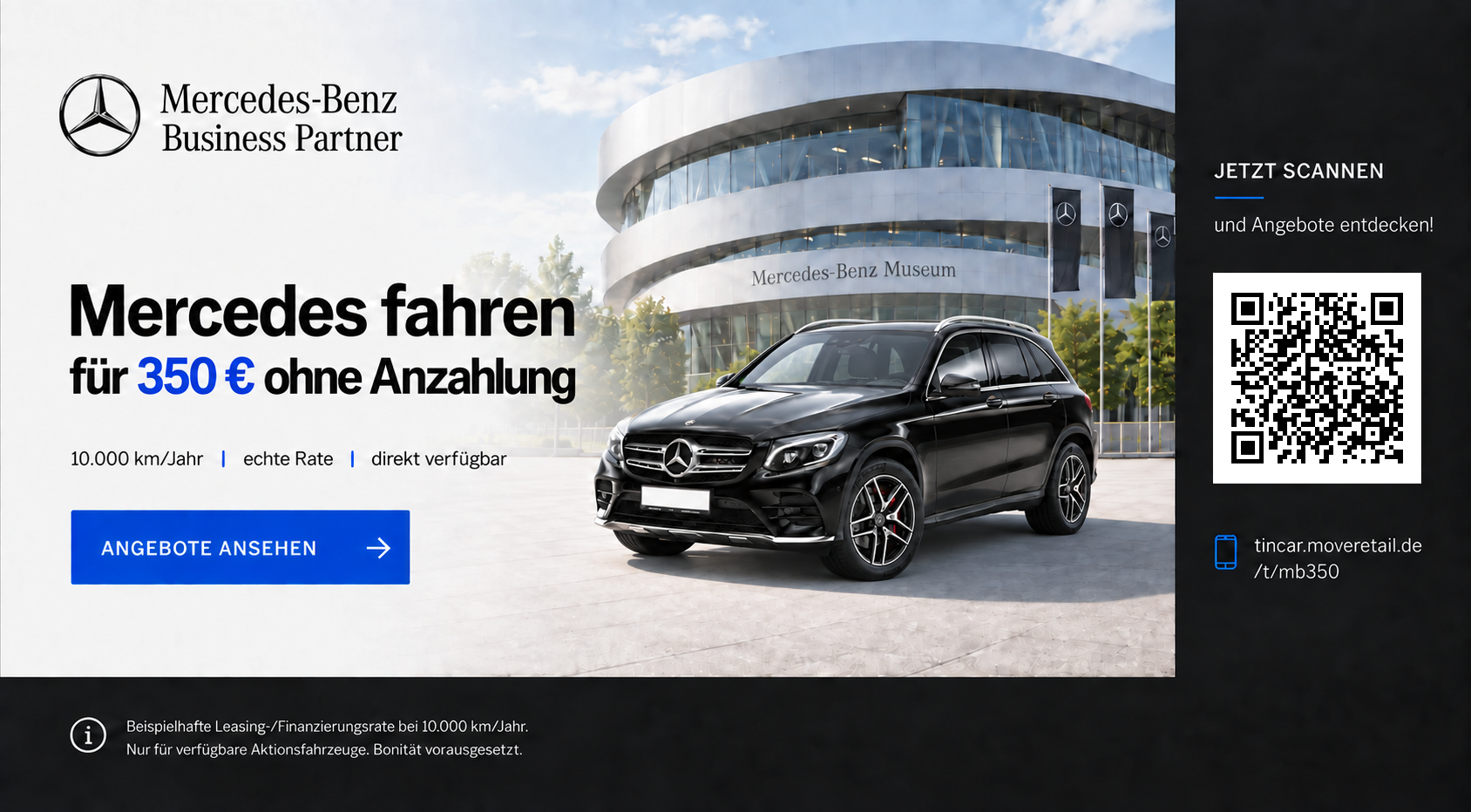
Use the campaign link or QR code in banners and print materials. Your advertising takes prospects directly to the relevant vehicle selection in Tincar.
Prospects open Tincar through the link or QR code and swipe through vehicles within their budget. They save favourites as matches, then send an inquiry to your dealership.
Runs in the browser and can be installed as a PWA on supported mobile devices.
Start with the customer’s monthly budget, a specific vehicle or an open vehicle search. Three examples show how these requests become a choice of vehicles with comparable payments and terms.
Scroll to explore the journeySwipe or choose a step
See how your team can find suitable vehicles, compare monthly payments and prepare offers. We’ll discuss how to connect your inventory and sales channels.